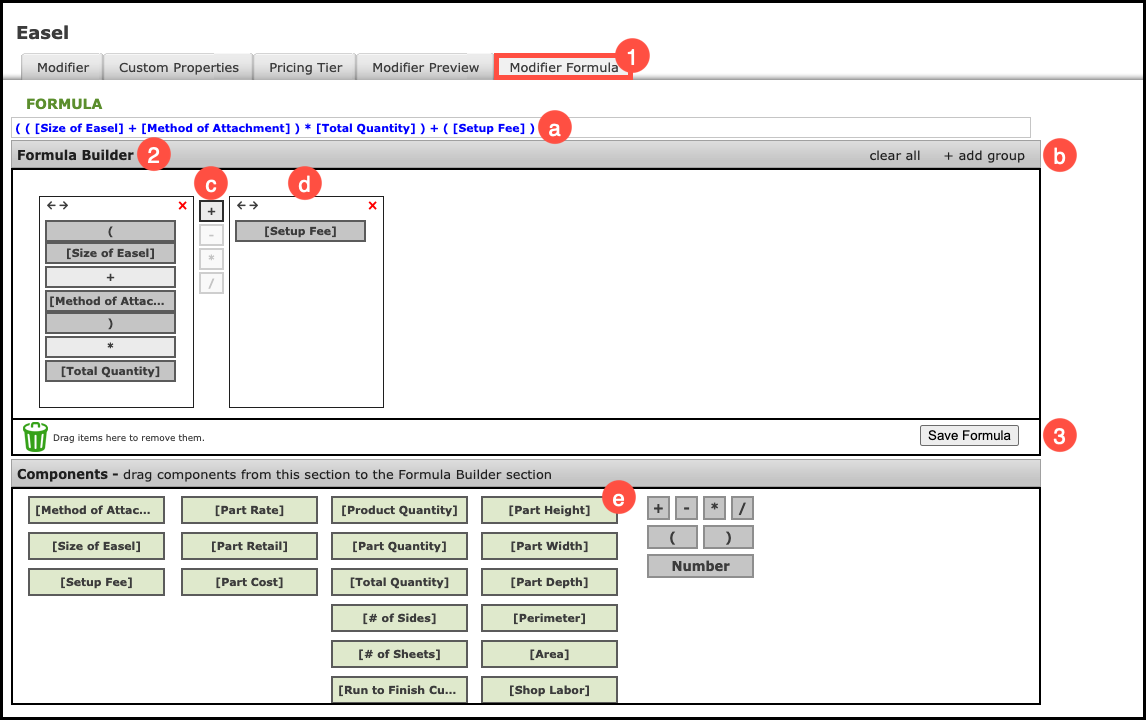
Each Modifier needs a Modifier Formula to calculate pricing.
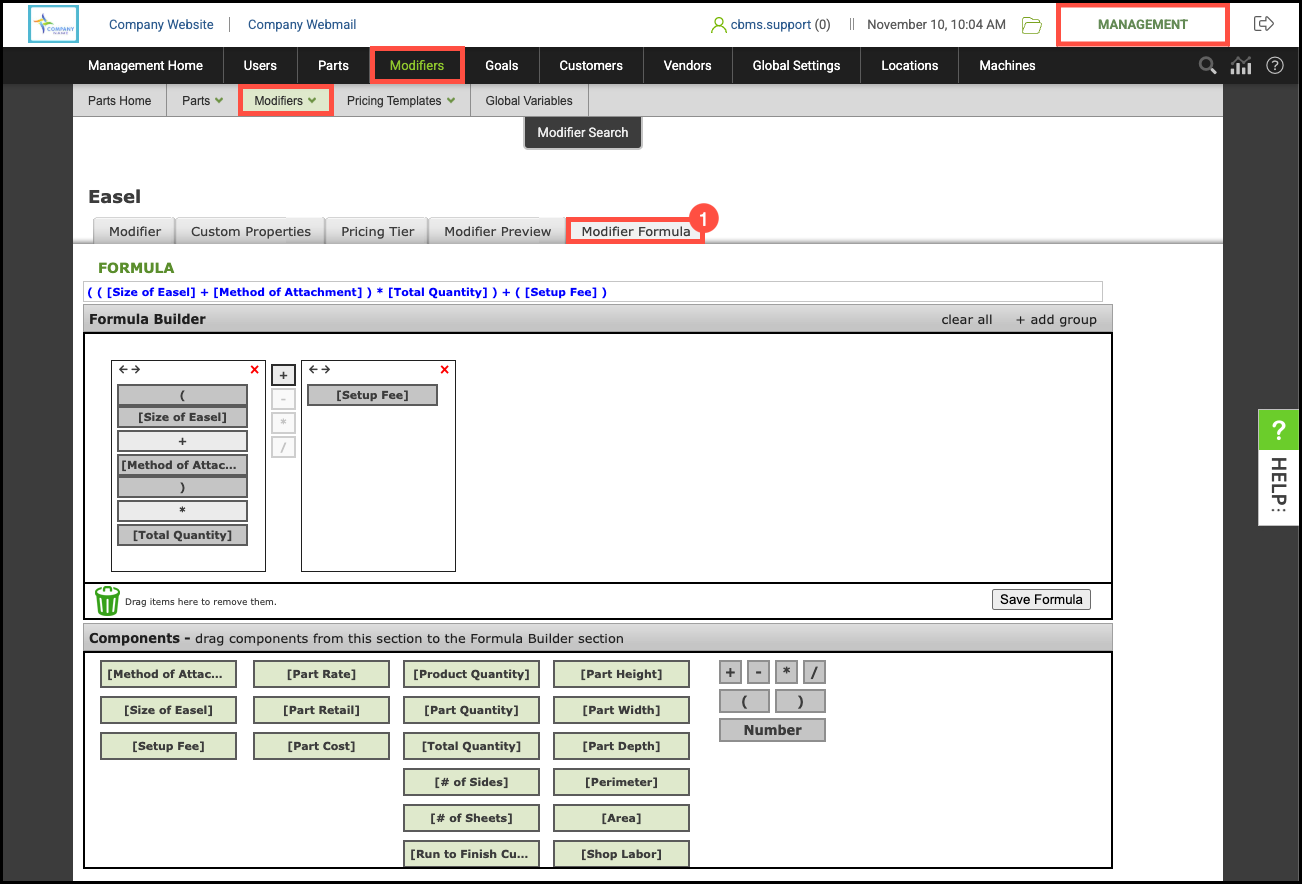
Navigate to Management Module / Modifiers / Modifiers and select the appropriate Modifier.
1. Select the Modifier Formula tab.
Components
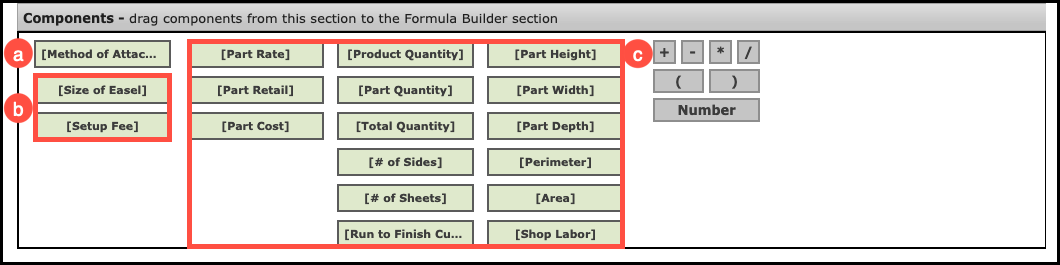
On the Formula tab, the left-hand column lists all properties you can reference from the Modifiers and Custom Properties tabs. The remaining columns contain standard components that you can use in any modifier formula.
a. Custom Properties are created on the Custom Property tab for that Modifier including those that can be used in your pricing formula.
b. Setup fees and Modifier or Variable rates must be added in the Modifier Formula. The Modifier Tab will show you these properties.
c. Standard Components are available for use in any Modifier Formula.
Building the Formula
1. Select the Modifier Formula tab.
2. Drag and drop items from the Components section into the Formula Builder.
a. Your formula will appear here in blue as you add components.
b. Clicking add group will add an additional container for your formula.
c. You can select the operator you would like in between the groups.
d. Each group added appears as a separate container.
e. Additional information about each Component appears when hovered over.
3. Click Save Formula.
Note: Anytime the Part Rate, Part Retail, or Part Cost components are used in the formula builder, the system adds the amount to the cost of the Modifier.