Second-generation reporting introduces extensive improvements to CoreBridge’s reporting tools, offering greater control over how information is viewed and managed. The enhanced interface includes dynamic filters, improved drilldown options, in-report links to Customers and Estimates/Orders, and updated formatting that simplifies exporting. It also provides system-level settings that let you determine which values are included in sales and cost of goods sold.
Table of Contents
Accessing Second-Generation Reports
Navigate to Reports / Sales / Sales Reports.
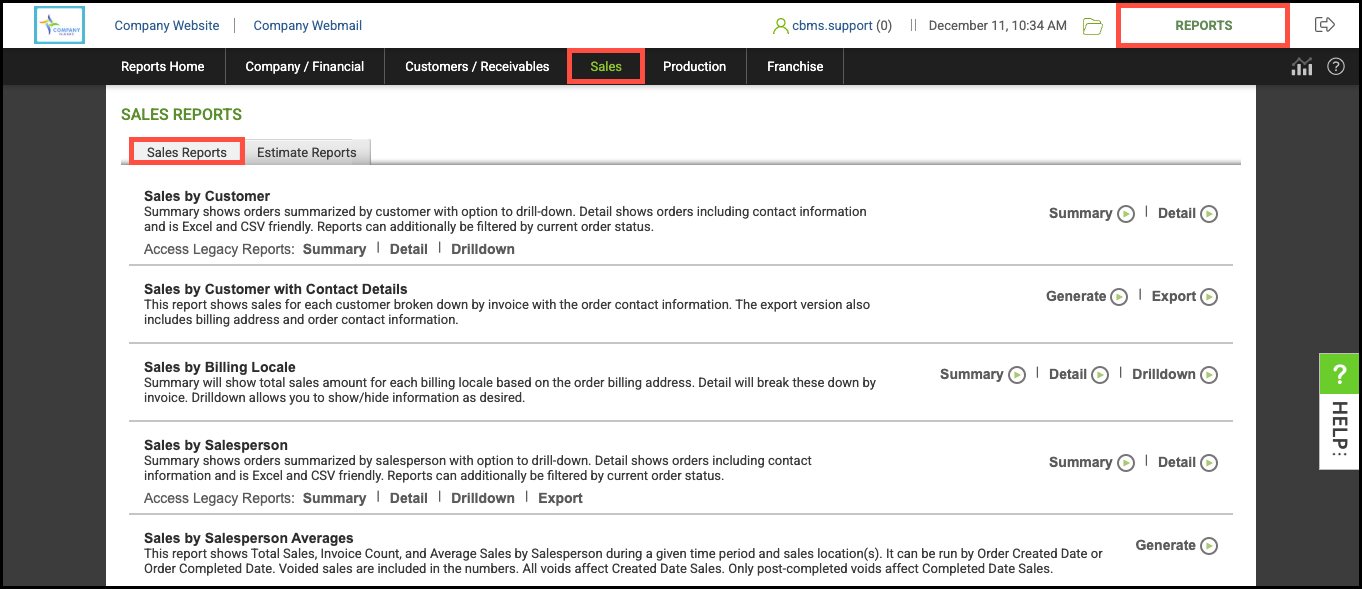
Examples of second-generation reports include:
- Sales by Customer
- Sales by Salesperson
- Sales by Entered By
- Sales by Industry Type
- Sales by Customer Origination
- Sales by Order Origination
- Sales by Customer Type
Using Second-Generation Reports
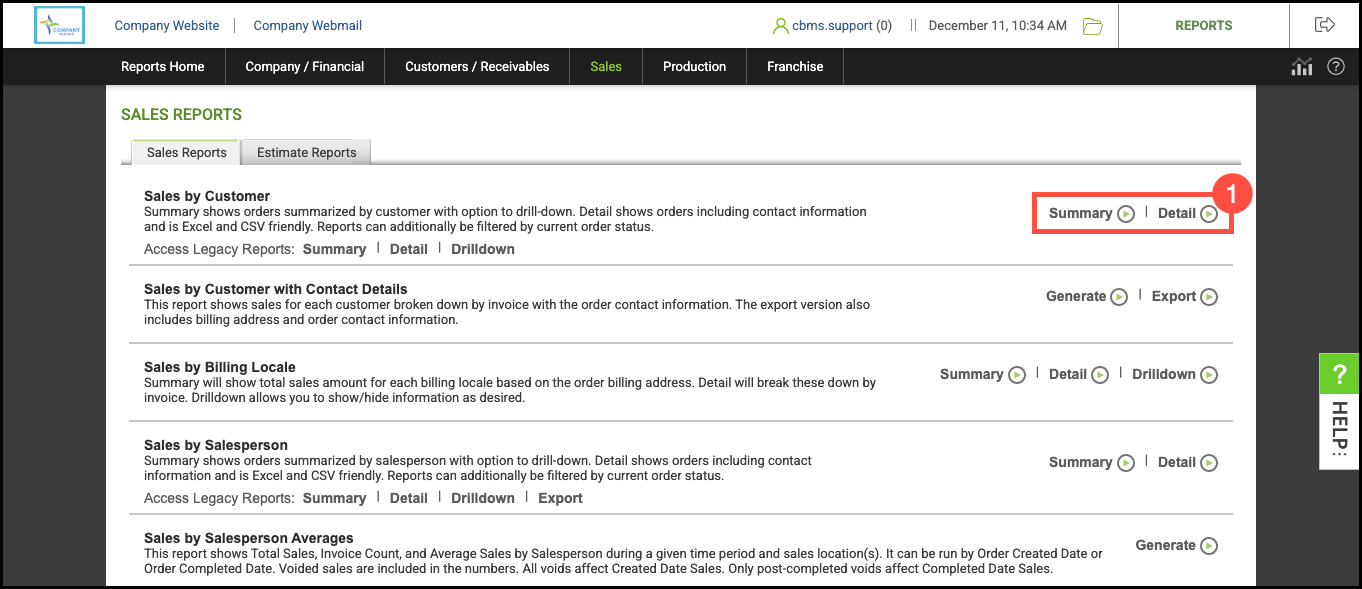
1. Select the Report Type.
- Summary shows a summary of the report with the option to drilldown.
- Detail shows additional information based on the selected report.
2. Select the desired base parameters.
3. Click View Report.

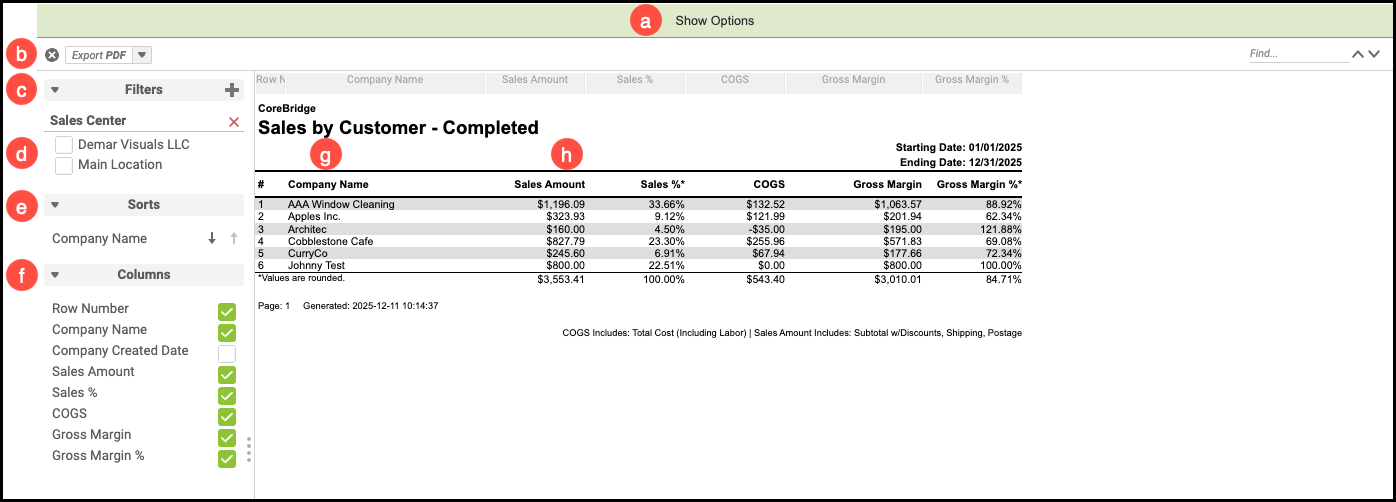
a. Clicking Show Options will bring up the heading to change the report's base parameters.
b. Clicking the arrow brings up options to export this report as an Excel, PDF, RTF, or CSV file.
c. Filters are available based on report type. Clicking the plus sign will show additional filters if available.
d. Use these checkboxes if you would like to narrow your report by Sales Center.
e. This changes how the report is sorted.
f. Columns selected will be included in the report.
g. Clicking the Customer Name will bring up their information page.
h. Clicking the Sales Amount will bring up more detailed drilldown information.
Note: On reports with invoice numbers, clicking the number will take you to the Order View Page.