
PlanProphet is a CRM and growth platform for print and sign shops. It sits on top of CoreBridge Classic and uses your live customers, quotes, orders, and invoices for pipeline, follow-up, marketing, and related tools. CoreBridge remains your MIS. PlanProphet does not replace estimating or production.
This article explains how to connect PlanProphet when it is licensed for your shop, and how to manage the connection from Services.
Table of Contents
Important Information
- Use the dedicated PlanProphet key from Integration Settings. Do not use your shop's general CoreBridge API key.
- You control the key. Owners and managers who can open Services can Generate, Disable, Enable, Revoke, and Rotate the key themselves. CoreBridge Support can help if you get stuck.
- For demos, pricing, ROI, and CRM features, contact PlanProphet. CoreBridge Support helps with licensing and the connection in CoreBridge.
- If you do not see PlanProphet under Management Module / Global Settings / Services, contact support.
- You must have already created a PlanProphet account in order to finish connecting.
Overview
PlanProphet is a Customer Relationship Management (CRM) and marketing automation platform for print and sign shops. It connects to CoreBridge so CRM, pipeline, automation, and dashboards stay tied to real customers, quotes, orders, and invoices, rather than a one-time contact import.
Customers, orders, quotes, and invoices flow between CoreBridge and PlanProphet and stay current on both sides. CoreBridge continues to run estimating and production. PlanProphet uses that live shop data for growth tools such as:
- CRM built on your CoreBridge customer and order data
- Sales pipeline and forecasting from quotes and orders
- Follow-up, reminders, and marketing journeys
- Billing follow-up driven by CoreBridge invoices
- Dashboards, alerts, and mobile access
On the PlanProphet panel in Services you can:
- Open Integration Settings to create and manage your PlanProphet key
- Use How to connect for a short reminder of the setup steps
- Click Learn more about PlanProphet to open PlanProphet's demo page, or use the envelope icon to email PlanProphet sales
Connecting PlanProphet
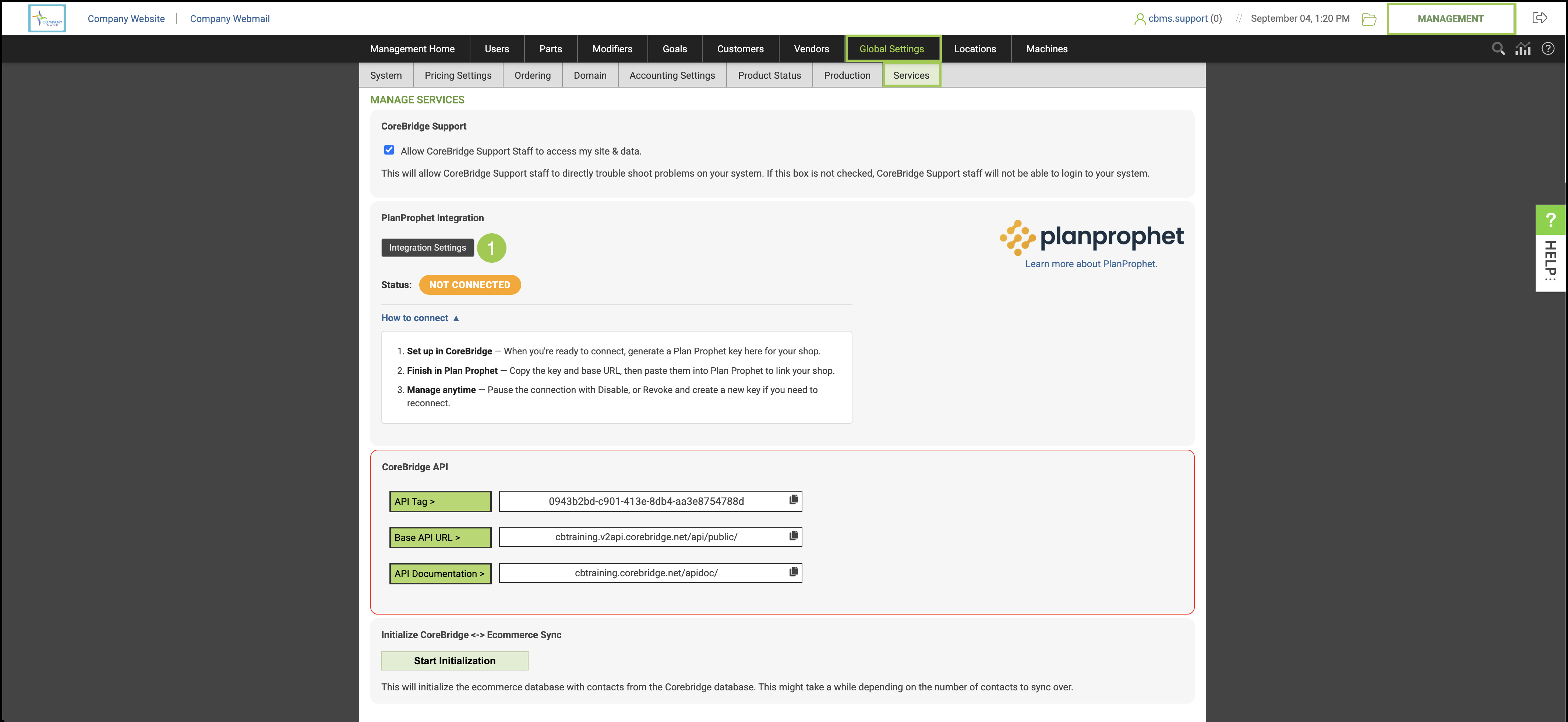
Navigate to Management Module / Global Settings / Services.
1. Find PlanProphet and open Integration Settings.
2. Click Generate. CoreBridge creates a key that is only for PlanProphet and only for your shop.
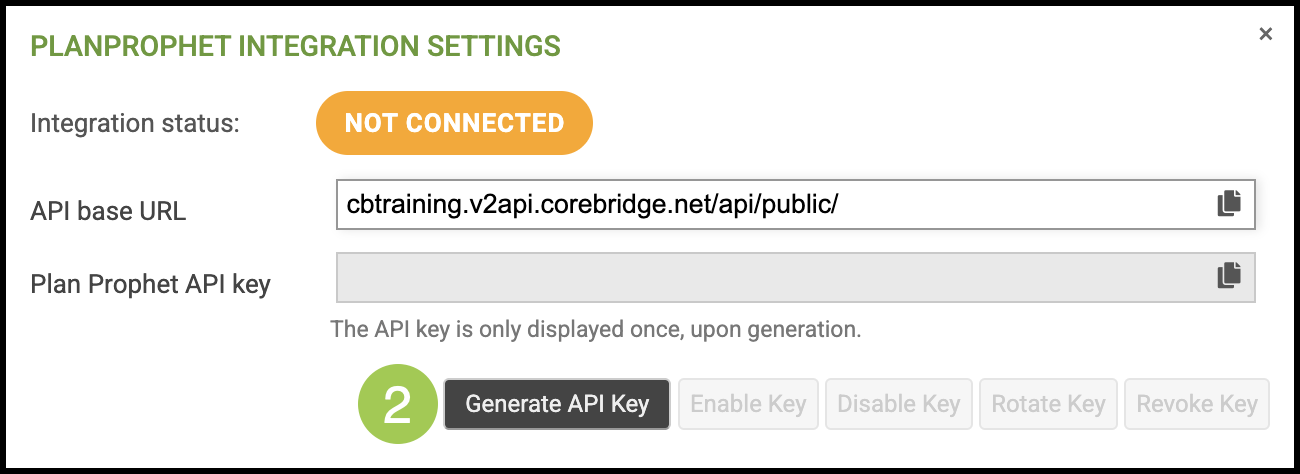
3. Copy the API base URL and the API key.
Note: Keep these private. You can reveal and copy the key again later from Integration Settings if needed.
4. In PlanProphet, complete connect / signup and paste the API base URL and key. That links PlanProphet to this shop.
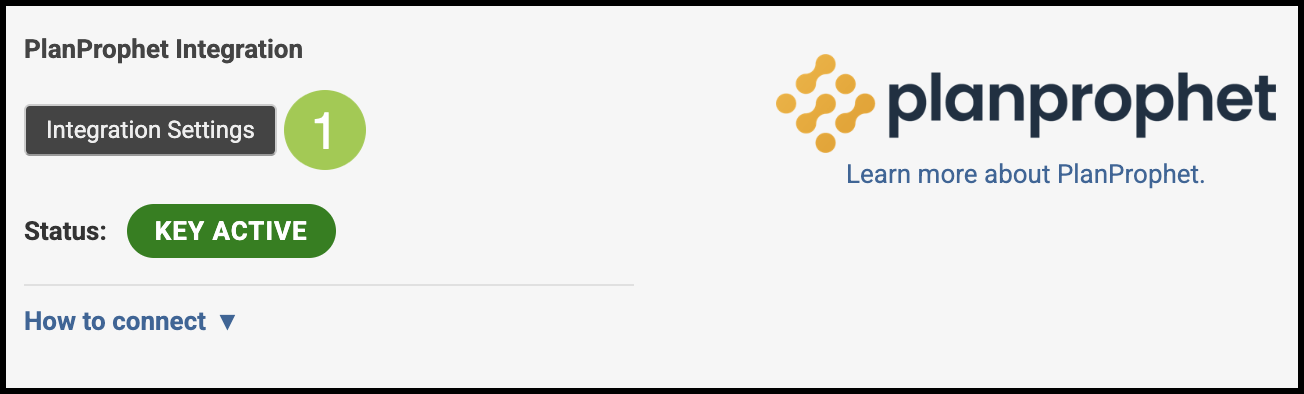
When the connection is working, CoreBridge shows the PlanProphet status as connected / active. Wording may vary slightly by status. Keep the key Active while you sync.
Managing the Connection
Manage the key from Integration Settings in your shop. You do not need Support for routine key changes.
1. Click Integration Settings.
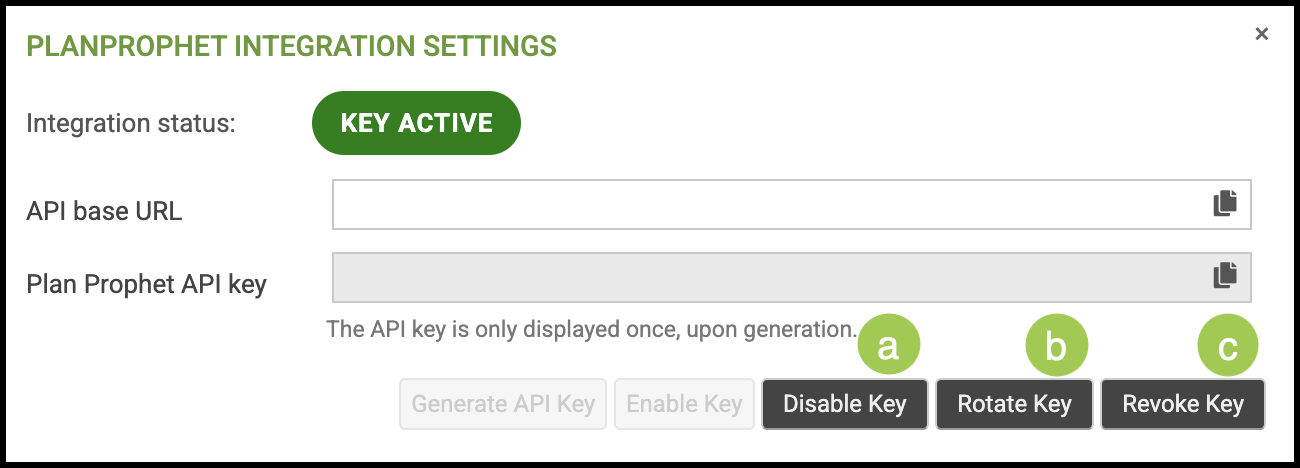
a. Disable pauses PlanProphet's use of the key. Enable turns the same key back on. You do not need to paste the key again in PlanProphet if they still have it.
b. Rotate replaces the key. Paste the new key in PlanProphet.
c. Revoke removes the key. Generate a new key and paste it again in PlanProphet to reconnect. After Revoke, you may briefly see KEY REVOKED on the Services panel, then NOT CONNECTED.
Frequently Asked Questions
1. What is PlanProphet?
Answer: PlanProphet is a CRM and growth platform for print and sign shops. It connects to CoreBridge Classic so customers, quotes, orders, and invoices can drive pipeline, follow-up, marketing, and related tools. CoreBridge remains the MIS.
2. Does PlanProphet replace CoreBridge?
Answer: No. PlanProphet sits on top of CoreBridge data for CRM and growth. CoreBridge continues to run estimating and production.
3. Where do I find PlanProphet in CoreBridge?
Answer: When PlanProphet is licensed for your shop, it appears under Management Module / Global Settings / Services.
4. Why don't I see PlanProphet under Services?
Answer: PlanProphet must be licensed for your shop before the panel appears. Contact CoreBridge Support to enable it.
5. Who should manage the PlanProphet key?
Answer: An owner or manager in Services. Generate, Disable, Enable, Revoke, and Rotate are self-serve. CoreBridge Support can walk you through the steps if you get stuck.
6. What is the difference between Disable, Revoke, and Rotate?
Answer: Disable pauses the existing key; Enable turns that same key back on. Revoke deletes the key, so you must Generate a new key and paste it in PlanProphet. Rotate issues a new key; paste the new value in PlanProphet.
7. Can I use my shop's regular CoreBridge API key with PlanProphet?
Answer: No. Always use the dedicated PlanProphet key from Integration Settings.
8. Who do I contact for demos, pricing, and CRM features?
Answer: Contact PlanProphet. Start with their CoreBridge integration page at https://www.planprophet.com/corebridge-planprophet-integration/, or email sales@planprophet.com.
Support
If you do not see PlanProphet under Services, or you need help generating or managing the key in CoreBridge, contact CoreBridge Support at support@corebridge.net.
For PlanProphet signup, pricing, demos, and CRM features, contact PlanProphet:
a. Get a Demo: https://www.planprophet.com/corebridge-planprophet-integration/
b. Sales email: sales@planprophet.com